August 5

Posterous: I think I got it

Last week at the KTI Summit, I was shown how to use Posterous.com to create a social media blog feed.  It is easy to use and allows you to post in multiple ways.

I think I figured out how to use the web-clipping tool to work straight from my FireFox browser.  I am still having trouble using the Posterous add on that I downloaded for the main FF toolbar.  I could not get it to load into the toolbar.

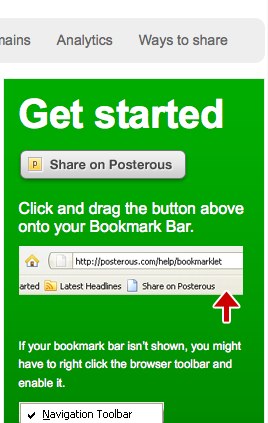
I decided on plan B.  I went to this link in Posterous, and just did a click and drag of the icon to my toolbar.  You can see the image below.

Click and drag the icon to your toolbar.

Click and drag the icon to your toolbar.

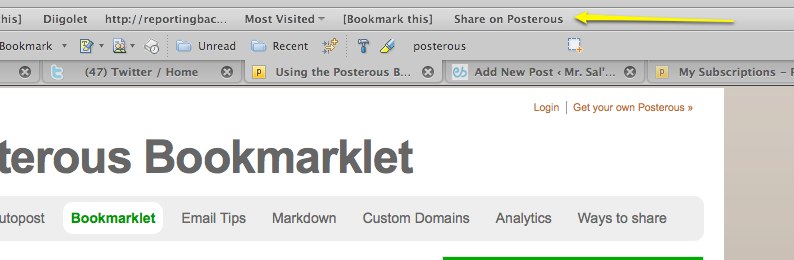
Once you place it in your toolbar, all you need to do is find something you would like to write about.  Once you find something, highlight it and click on the button in your toolbar.  The highlighted image will be clipped and imported into your Posterous blog.  You have the option of adding your own comments, which is highly recommended. See the image below to see the tab in my toolbar.

Posterous Bookmarklet in toolbar

As I mentioned in a previous post, you can set up your account to automatically push your post out to other social networking sites you have.

Setting up your account this way, with the toolbar tab, allows you post in seconds.  NICE!

August 5

KTI 2010: Some things I learned last week, Edmodo

I presented on Edmodo last week at the KTI Summit, but that is not why I am posting this.  I worked formally and informally with many people at the summit on how to incorporate Edmodo in their classrooms.  We worked in the small group sessions, open labs, and even in the dining hall discussing uses and “how to’s.”

I will be using Edmodo as my main classroom platform this year in school.  The main page looks much like a Facebook page, which makes it easy for my students to navigate.  The mobile app for iPods looks like a Twitter feed, it is streamlined and easy to use on mobile devices.

The one plus I brought up in my presentation was the ease of setting up an account and classes.  In a matter of a couple of minutes, you can create an account and classes.  You give your students the class code and they create accounts or log in with existing ones, then they just type in the code and are in your class.  Even if you only run one discussion board a year, Edmodo is the tool to use.  You do not waste time importing students and setting everything up.

Now, back to what I learned at the Summit.  We played with the “public” tab in Edmodo, this allows for any note, file, link, etc. to be pushed out to a public URL, which can then be viewed without logging in to your classroom.  This feature gives me another tool with which to keep parents updated on class events. I can push out my class calendar and any file I feel parents need access to, while keeping other information secure from strangers; all with the click of a mouse.

Another idea we came up with was to group students into general classes, then create sub-groups by period and as needed.  This allows for discussion and interaction between students in different periods, but also gives the teacher the option to push out information to specific groups without everyone else getting it.  This functionality happens by just giving the students your classroom code so they can enroll themselves into your course, then with a couple clicks of your mouse, you can group them as you wish.

I embedded my 30box calendar, that is on the front page of my class wiki, into my Edmodo classrooms, this will allow me to update in 30boxes and show up everywhere I have it embedded.  I can also do the same with a Google calendar or any calendar that embeds in a web page.

Edmodo just enabled the use of folders on the site.  This new development will allow me to better organize all of my links and files.  Instead of having to build a master class for organizing my curriculum, I can just upload everything into folders with detailed names.  This will allow me to open and close information to students as needed, without any hassle.

Last, but surely not least, I have communicate on Twitter with one of Edmodo’s co-founders, Jeff O’Hara on numerous occasions.  He has always been helpful with advice and quick to respond to any questions I have had.  Jeff has also asked for feedback from my students and others to make Edmodo user friendly.  This rates high in my opinion and is the main reason I talk up Edmodo as often as I can.

I have used Moodle, BlackBoard, and Web CT, they work great, but for overall ease of use and free cost, Edmodo is the way to expand your classroom beyond the traditional walls and times.
August 3

KTI Summit 2010: Some things I learned last week, Posterous

I have been reflecting on my experiences last week at the Keystone Technology Integrator’s Summit at Bucknell University.  I picked up many new ideas and worked on refining some strategies and tools that I already use in my classroom.  Today’s topic will be Posterous.

I have heard of Posterous before, but never really worked with it.  Posterous is a blogging/social media site that allows you to post various forms of media online and coordinate your posts with other websites you may use, such as Facebook, Twitter, etc.  Here is the link to their FAQ page.  When I got home from the summit, I created an account and in minutes I was up and running.  The site is extremely intuitive to set up.  I created an account, linked my other accounts to Posterous, updated my profile, and found friends who are already using the site.  I have not posted yet, since I have been getting caught up on life after being away for a week at the KTI Summit.  Kristin Hokanson showed in her preso at the summit how to I am looking into the mobile app for Posterous, it may be usable on my iPod, even though it is designed for an iPhone.  The Firefox Toolbar add on is also an item I am looking forward to using in the near future.  The concept is that you can instantly grab web-based articles and information and create a post to be pushed out to other sites.  I will discuss this tool more once I use it more often.

September 30

Three Programs You Need Now

Here is my first Tech Tip Blog Post. It deals with the basic practicalities of making your job easier. There are three programs you need right now, and they are all free. The reason that you need them is that they will allow you to work with others and will make life so much easier once you become comfortable with them.

The first one mentioned, Google Apps, is supplied by the District. It allows you to store documents, PowerPoints, and Excel files online. You can not only access them from anywhere there is an Internet connection, but you can also collaborate with others easily, no cutting and pasting, no e-mailing attachments, and all that other rigamarole. New Brighton’s start page to log in is http://partnerpage.google.com/nbasdcff.wikispaces.com. If you need your log in information, please e-mail me. We are setting up student accounts so they can have the same sort of access to their work. By creating accounts for the district we will be able to administer student accounts for such tasks as fixing lost or fogotten passwords. You can also set up a personal account at http://google.com.

The second is Diigo, a social bookmarking site. It allows you to store your favorites, or bookmarks online, so you can access them on any computer once you log in to the site. You can also share bookmarks with other individuals and groups. This allows you to have access to the research of others, once again without much effort. There is a group for New Brighton Teachers, and there are numerous other groups for educators. You can also create groups for your classes to give students access to approved bookmarks for your class in a secure setting, see me for details. The general site to create an account is http://www.diigo.com. Once you have created your own account, you can go to sign up for an educator’s account at http://www.diigo.com/education.

The third program dovetails nicely with existing programs in the district. Many teachers use Kidspiration and Inspiration software to create graphic organizers for use in the classroom. There is a free web-based, (online), program called Webspiration that allows you to do the same thing. Webspiration allows you to upload existing files to the Internet, download files to your desktop, and share your files with others, just by typing in their e-mail address. The people you share with must also have a free account to acces your files. You can edit the files together, or just pass them around by sharing. Webspiration also contains free clip art and media to drop into your graphic organizers to make them more interesting for the students. The program has many other features that I will not get into yet. This tool is available at http://www.mywebspiration.com.

The main themes that bind these three programs together, beside the fact that they are all free, is that they allow you to access information from anywhere in the world, and that they allow you to easily collaborate with others. Let’s face the fact that there is not enough time in the day to accomplish everything we would like to do. By working together, we make tasks easier and can accomplish more in the limited time we have. if you would like help setting up any of these accounts feel free to contact me at school.